

My Account portal
The My Account portal is a Strivacity-maintained self-service application that allows customers to manage key aspects of their accounts independently.
Administrators can configure which self-service capabilities are available to customers through self-service policies. Branding policies control the appearance and customer-facing content of the portal.
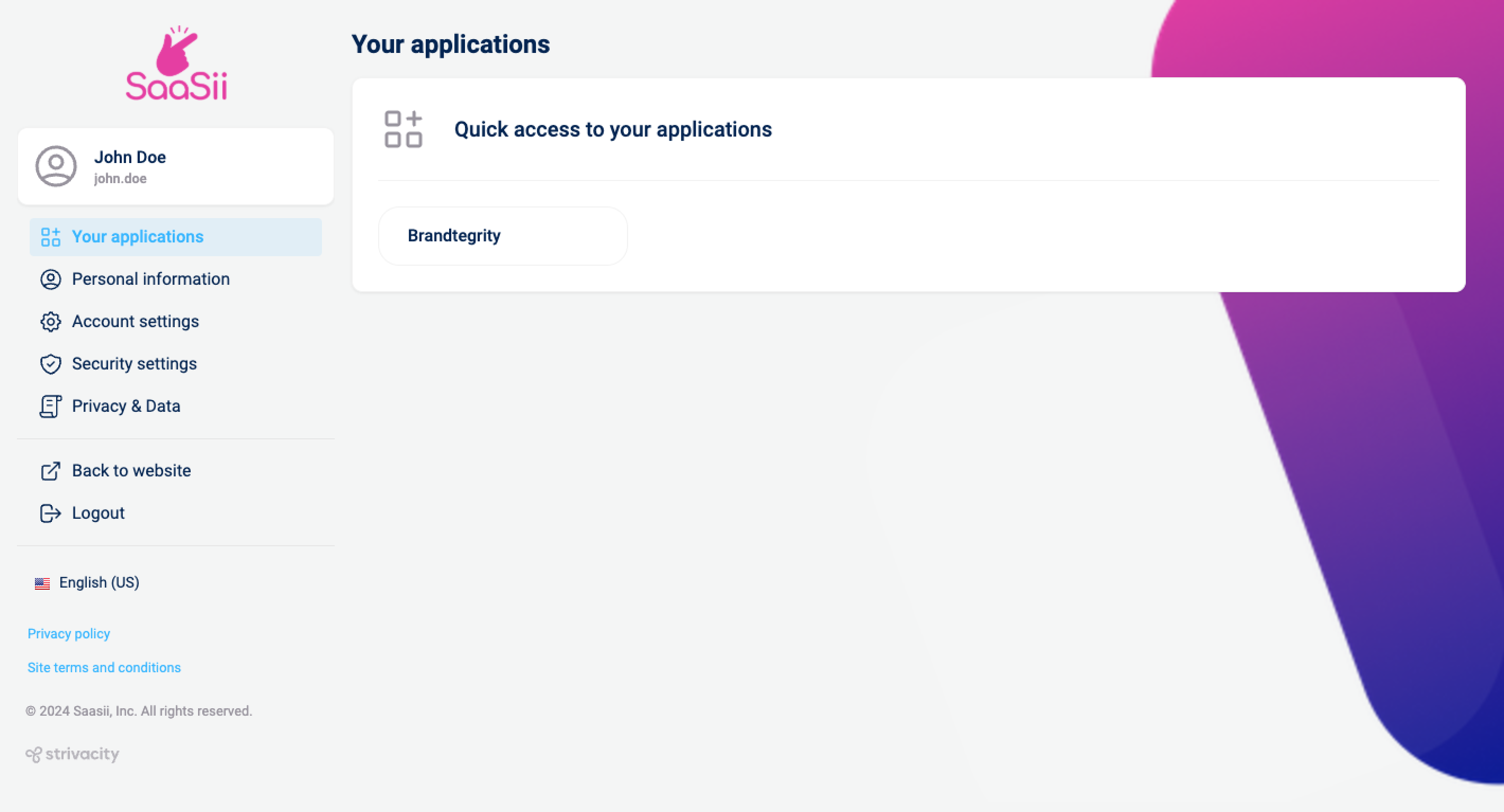
My Account portal with custom branding
Core features of the My Account portal
Six key self-service policy settings govern the My Account portal. Each setting determines which functionalities are accessible to customers:
The settings below can be modified by admins under Policies>Self-service > Self-service functionality.
Personal information
- Manage personal information
Enabling the Allow customers to manage their personal information setting allows customers to update their account attributes via the Personal information tab in the My Account portal.
Available fields depend on the account attributes configured for self-service management and may include standard or custom attributes.
Account settings
- Edit identifier
Customers can edit their identifier when the Enable editing of identifier in My Account portal is enabled. This adds the edit button next to the existing identifier under the Account settings tab in the My Account portal. - Linked login providers
If customers have linked one or more external login providers to their account, they are listed under the How you log in section of the Account settings page. Each linked login provider displays the provider name and logo and the external identifier associated with the account.
Customers can unlink a login provider by selecting Unlink. A login provider can only be unlinked if another login method remains available for the account. If the remaining login method is local, the customer must have at least one configured authentication method to continue signing in. - Delete account
For enhanced customer control, the Allow customers to delete their account setting enables the Delete your account option under the Account settings tab in the My Account portal.
Notification preferences
Customers can manage their notification preferences when the Allow customers to manage their own notifications setting is enabled.
Customers can choose whether they want to receive notifications about:
- Account updates
- Account lockouts
- Account deletion
- MFA method changes
- Successful password resets
Changes take effect immediately after selecting Update.
Security settings
- Multi-factor authentication
Customers can manage supported MFA authenticators through the Security settings tab in the My Account portal. Depending on configuration, customers can add new methods, enable or disable available methods, or delete existing authenticators.
Available options depend on the MFA methods enabled for the application and adaptive access policies. - Change password
Customers can securely update their passwords when the Allow customers to change their password option is enabled. This adds the Change password option under the Security settings tab in the My Account portal. - Recognized devices
Customers can review and delete recognized devices through the Security settings tab in the My Account portal.
Recognized devices show devices from which the account has successfully signed in.
Privacy & data
- Consent management
Customers can review and modify their data consents by activating the Allow customers to manage their consents setting. This feature is available under the Privacy & data tab within the My Account portal. - Agent and application access: customers can review which AI agents and applications they've authorized to access their account, see the access each one holds in plain language, and revoke it. See Authorization consents.
- Download account data
With the Allow customers to download their data setting turned on, customers gain access to download their account information from the Privacy & data tab within the My Account portal.
Display language
- Customers can change the display language of the My Account portal using the language selector in the left-hand navigation.
My Account application client
The My Account application client enables the My Account portal to function. It serves as a connection between the My Account portal and Strivacity's identity services. By enabling this application client, the portal can securely interact with the identity store and provide customers with a self-service interface for managing their account details, preferences, and credentials.
To learn more about configuring the My Account application client:
- Refer to the Application clients documentation for detailed guidance on client configuration.
- See how to configure your application in Creating your first application.
- Follow the instructions in Configure your web application with Strivacity (self-service).
My Account portal branding
My Account portals can take on their own look and feel to establish a distinct brand identity, but you can go further than that. You can change the presentation layer with JavaScript to display dynamic content, such as custom fonts, widgets, or any generated HTML or CSS elements, to enrich the brand experience.
To customize My Account portal branding, go to Policies > Branding and open the branding policy you want to edit. In the Branding policy editor, select My Account from the available options under each menu item (Custom CSS, Additional script, Additional content).

My Account portal branding options within the branding policy IDE
Updated 3 months ago