

Manage social login providers
You can manage which social login providers are available for an application by adding or removing configured providers. This allows you to control how customers can sign in to your application.
Adding a social login provider to an application
A single application can support one of each social identity provider. To assign an existing, configured social login provider to an application, perform the following steps:
- Start by logging into the Admin Console using an admin account.
- From the left-hand menu, select Applications.
- Select the application you want to update.
- Under Login providers and Social login providers, select Add provider.
- Select one or more configured social login providers from the list.
- Select Save to apply the changes.
- The login experience is updated immediately to include the selected providers. The example below shows how the login screen changes after adding a social login provider.
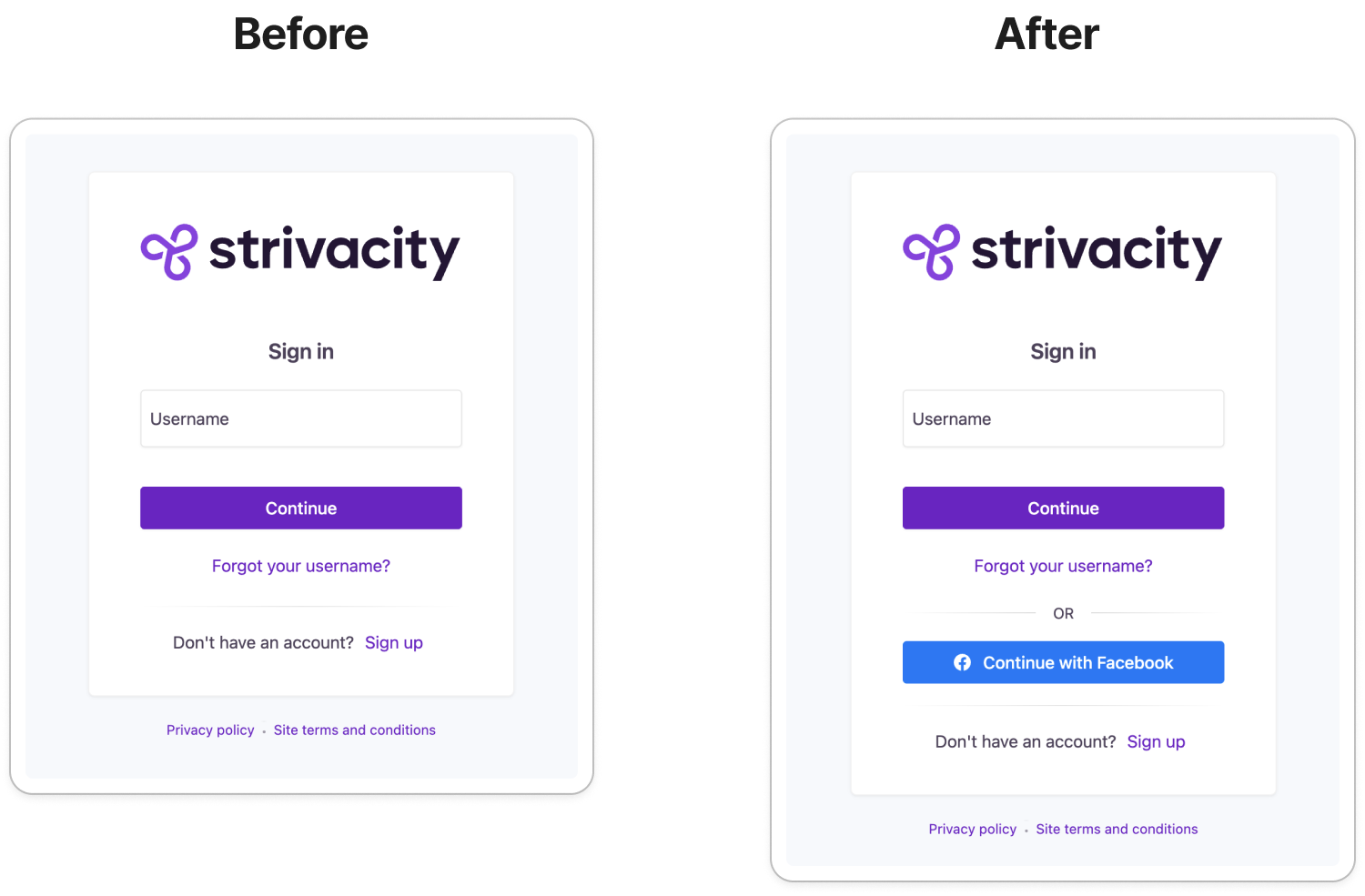
Deleting a social login provider from an application
To remove a social login provider from an application, follow these steps:
- Sign in to the Admin Console using an administrator account.
- Navigate to Applications.
- Select the application you want to update.
- Under Login providers and Social login, locate the provider you want to remove.
- Select the delete (trash) icon next to the provider.
- Select Save to apply the changes.
The login experience is updated immediately to reflect the removed providers.
Updated 6 months ago
Did this page help you?