

Protected resources
Protected resources define the services that clients can access and the scopes available for those services.
To manage protected resources, go to Policies > Protected resources.
The page contains two tabs:
- Delegated access: Configure protected resources that OAuth2/OIDC clients can request access to as part of an authorization journey.
- System access: Configure authorization for proprietary REST APIs and backend services. System access replaces the previous API security policy configuration.
Delegated access
Delegated access policies define protected resources that OAuth2/OIDC clients can request access to on behalf of customers.
A delegated access policy identifies the protected resource, the scopes it supports, and the customer-facing information Strivacity can display when authorization is required.
Create a delegated access policy
- Go to Policies > Protected resources.
- On the Delegated access tab, select Create.
- Enter a Name and, optionally, a Description.
- Optionally, assign a Policy tag to help organize your policies.
- Select the protected resource Type.
- Generic protected resource: An API or other OAuth2-protected service.
- MCP server: A Model Context Protocol server.
- Enter the Display name and Logo URL. These identify the resource to customers when authorization is required.
- Enter the Resource URL. This identifies the protected resource in authorization requests and issued access tokens.
- Select Save.
Protected resources with the MCP server type are also listed under Agentic AI > MCP servers.
Define scopes
Scopes describe the permissions that clients can request for the protected resource.
- Open the delegated access policy.
- Select the Scopes tab.
- Select Create scope.
- Enter:
- Name: The technical scope value requested by the client.
- Display name: The customer-facing description of the permission.
- Select Save.
Save the new scope and repeat the steps until you've added every desired scope.
At this point, the protected resource and its scopes are not available to a client yet. Assign the protected resource to the client that should be allowed to request access.
Assign the protected resource to a client
- Go to Applications and open the application.
- Open the OAuth2/OIDC client that should have access to the resource.
- Select the Protected resources tab.
- Select Assign protected resource.
- Select the protected resource.
- Select the scopes you want to allow the client to request.
- Configure whether customer authorization is required for the applicable scopes.
- Select Save.
The scopes selected in the assignment define which permissions the client can request. The client does not need to request every scope assigned to it.
When authorization is required, Strivacity presents the requested access to the customer during the authorization journey.
See Authorization consents for more information about the customer authorization experience.
Disable a delegated access policy
You can disable a protected resource without deleting its configuration.
Disabling a protected resource:
- It cannot be used for new authorization requests.
- Token refresh for the protected resource is prevented.
- Its configuration remains available.
- The protected resource and its scope configuration remain visible in client assignments as disabled.
- Related authorization consents remain visible as disabled.
- Customers and administrators can still remove disabled authorization consents.
Re-enable the protected resource to make it available for authorization again.
Delete a delegated access policy
Deleting a protected resource removes its configuration and removes it from client assignments.
Existing authorization consents remain available but indicate that access has been removed. Customers and administrators can remove these remaining consent records.
Protected resource disable and delete operations are recorded in the audit log.
System access
Set up authorization for your proprietary REST APIs or backend services through Strivacity.
System access allows you to expose your REST APIs' endpoints and custom scopes to Strivacity's API Controller service.
Strivacity's API Controller will:
- Generate and provide access tokens for use against your REST APIs.
- Allow access to the scopes defined in the system access policy.
- Allow your proprietary REST APIs to validate access tokens.
Client credentials flow
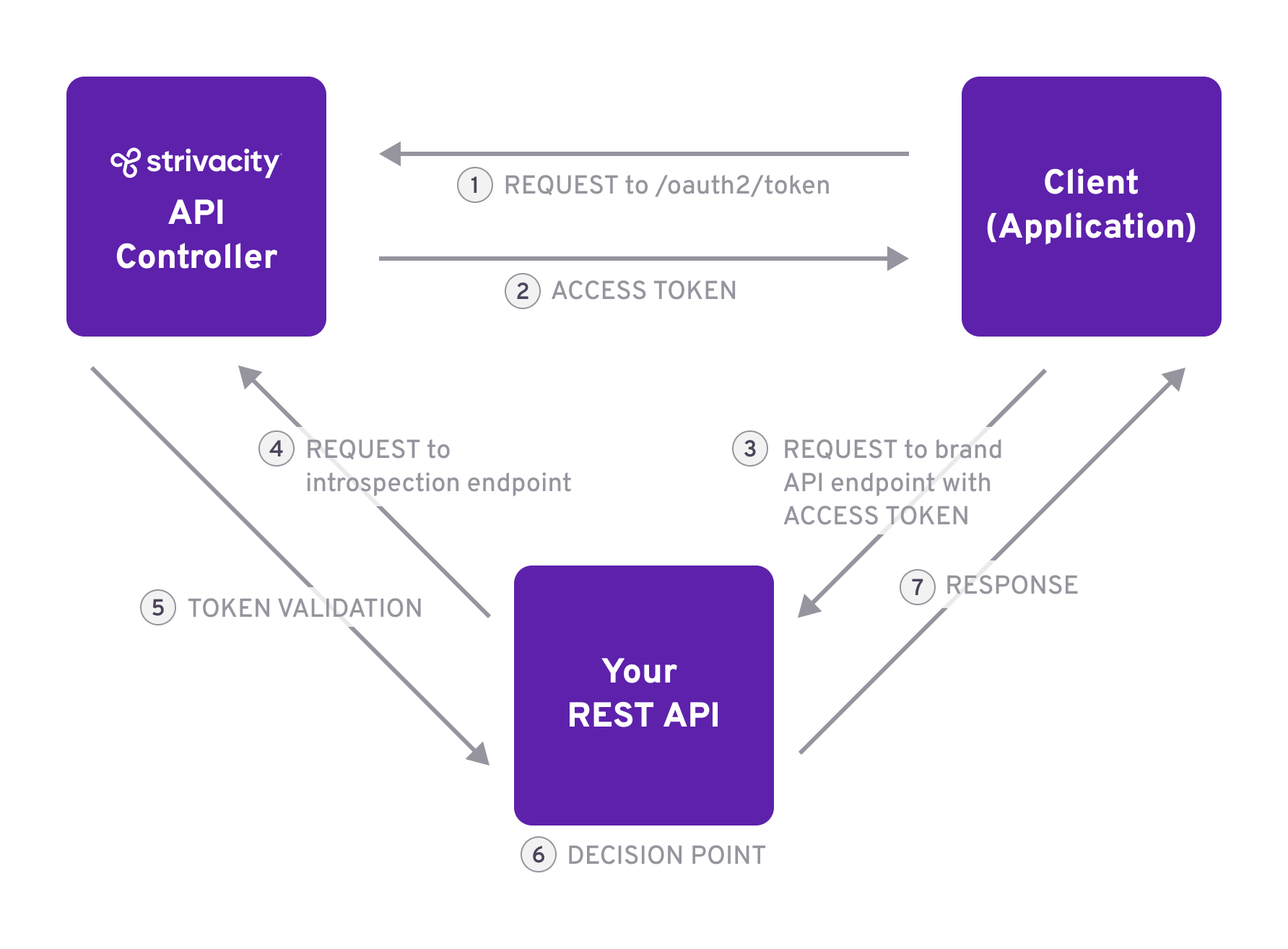
Client credentials flow
Strivacity provides API authorization using the Client Credentials flow that starts with an access token request.
You can obtain the credentials (Client ID and Client Secret) needed for the token request from an application.
The Client ID and Secret required for service-to-service communication are provided by the application the system access policy is assigned to.
Disable Interactive login and registration in applications that have system access policies.
Create a system access policy
- Go to Policies > Protected resources.
- Select the System access tab.
- Select Create.
- Enter a Name and, optionally, a Description.
- Optionally, assign a Policy tag to help organize your policies.
- Enter the Audience.
- Select Save.
Audience is the endpoint of your REST API.
Define scopes
- Open the system access policy.
- Switch to the Scopes tab, where you can add your REST API's scopes.
- Select Create scope to fill in a scope.
- Save your new scope and repeat the steps until you've added every desired scope.
At this point, your REST API's custom scopes are not added to any application yet. Custom scopes will not be validated against the Strivacity API Controller until you add the scopes to an application.
Assign the policy to a client
- Open the system access policy.
- Continue to Client assignments and select Assign to client.
- Assign the application that will provide the Client ID and Secret for the communication between the Strivacity API Controller and your REST API.
- Select the scopes you want to allow access to.
- Save your changes.
Updated about 1 hour ago